The WayWay Q6031 Powered by the latest SiRF Atlas IV chipset, the Q6031 allows user to enjoy superb 3D navigation with ease and accuracy. The Q6031 has also a multimedia player and photo viewer for users to enjoy.
WayWay Q6031 Features:
1. SiRF Atlas-IV, dual-core, ARM11 CPU, 500MHZ.
2. High Resolution 800 x 480
3. 6.0” TFT LCD screen with sensitive touch panel.
4. Built-in high memory capacity of 128MB.
5. Large internal memory storage of 2GB
6. Additional storage via MicroSD Card slot
7. Multimedia Player Support
8. Games, calculator & conversion tool function
9. Multiple language support
What's in the box:-
1 x WayWay Q6031 Main Unit
1 x Vehicle Suction Cup Mount
1 x Vehicle Charger
1 x USB Cable
1 x User Manual
Preloaded with M3GPS X5 SE including Malaysia, Brunei, Indonesia, Thailand and Singapore 3D Maps
All the notebook advertised with Intel Core I3 Processor are out of stock for now so please do call me for confirmation. Dual core and Core I5 still available.
-Pre-installed with the NEW and IMPROVED M3GPS X6 SE navigation software
-comes with FM Transmitter, Lane assist, Junction Views, realistic 3D buildings and landmarks, Multimedia players, improved routing, guidance and many more
The Model Of WayWay Q5033 GPS Navigator with Junction View & 3D Building
The WayWay Q5033 now is even with more features which comes High definition 800x480 screen resolution and supports Voice Command Activation.
The Q5033 is improved in terms of hardware which comes with SiRF V with 533MHz, High definition 800x480 screen resolution and supports Voice Command Activation that allows user speak out the destination without key in (selected software). It also has multimedia player, photo viewer, e-Book, Games & more!!
WayWay Q5033 Features:
1. SiRF Atlas-V, dual-core, ARM11 CPU, 533MHZ.
2. High Resolution 800 x 480
3. 5.0” TFT LCD screen with sensitive touch panel.
4. Built-in high memory capacity of 128MB.
5. Large internal memory storage of 2GB
6. Additional storage via MicroSD Card slot
7. Multimedia Player Support
8. Games, calculator & conversion tool function
9. Multiple language support
Acronis True Image is disk imaging software, developed by Acronis, that creates backups and recovers PC systems. The software allows a user to create an image of a disk while it is running Microsoft Windows or offline by booting from CD/DVD, USB flash drives, PXE, or other bootable media. As a disk imaging software, True Image can restore the previously captured image to another disk, replicating the structure and contents to the new disk, also allowing disk cloning and partition resizing, as well if the new disk is of different capacity.
I have tested and used the latest version of Acronis True Image Home 2011 on Core 2 duo processor and 4GB RAM, backup of system (partition C) and partition D with total of more than 8GB only take less then 10 minutes. Restoration of the image created take only less than 15 minutes. Remarkable and outstanding performance. Imagine how long would it take to prepared a lab with 40 computer using old method (manual) probably 1 or 2 weeks, but by using Acronis maybe we need only 1 day to finish preparing all 40 computer (40 x 15 minutes = 600 minutes= 10 hours only )
Try it , you surely satisfied.
Google Public DNS is a free, global Domain Name System (DNS) resolution service, that you can use as an alternative to your current DNS provider.
To try it out:
Configure your network settings to use the IP addresses 8.8.8.8 and 8.8.4.4 as your DNS servers or
Read configuration instructions.
If you decide to try Google Public DNS, your client programs will perform all DNS lookups using Google Public DNS.
Why does DNS matter?
The DNS protocol is an important part of the web's infrastructure, serving as the Internet's phone book: every time you visit a website, your computer performs a DNS lookup. Complex pages often require multiple DNS lookups before they start loading, so your computer may be performing hundreds of lookups a day.
Why should you try Google Public DNS?
By using Google Public DNS you can:
Speed up your browsing experience.
Improve your security.
Get the results you expect with absolutely no redirection.
You're probably familiar with the popular proprietary commercial package Norton Ghost®. The problem with these kind of software packages is that it takes a lot of time to massively clone systems to many computers. You've probably also heard of Symantec's solution to this problem, Symantec Ghost Corporate Edition® with multicasting. Well, now there is an OpenSource clone system (OCS) solution called Clonezilla with unicasting and multicasting!
Clonezilla, based on DRBL, Partclone and udpcast, allows you to do bare metal backup and recovery. Two types of Clonezilla are available, Clonezilla live and Clonezilla SE (server edition). Clonezilla live is suitable for single machine backup and restore. While Clonezilla SE is for massive deployment, it can clone many (40 plus!) computers simultaneously. Clonezilla saves and restores only used blocks in the harddisk. This increases the clone efficiency. At the NCHC's Classroom C, Clonezilla SE was used to clone 41 computers simultaneously. It took only about 10 minutes to clone a 5.6 GBytes system image to all 41 computers via multicasting!
Features:
Free (GPL) Software.
Filesystem supported: (1) ext2, ext3, ext4, reiserfs, reiser4, xfs, jfs of GNU/Linux, (2) FAT, NTFS of MS Windows, (3) HFS+ of Mac OS, (4) UFS of FreeBSD, NetBSD, and OpenBSD, and (5) VMFS of VMWare ESX. Therefore you can clone GNU/Linux, MS windows, Intel-based Mac OS, and FreeBSD, NetBSD, and OpenBSD, no matter it's 32-bit (x86) or 64-bit (x86-64) OS. For these file systems, only used blocks in partition are saved and restored. For unsupported file system, sector-to-sector copy is done by dd in Clonezilla.
LVM2 (LVM version 1 is not) under GNU/Linux is supported.
Grub (version 1 and version 2) is supported.
Unattended mode is supported. Almost all steps can be done via commands and options. You can also use a lot of boot parameters to customize your own imaging and cloning.
Multicast is supported in Clonezilla SE, which is suitable for massively clone. You can also remotely use it to save or restore a bunch of computers if PXE and Wake-on-LAN are supported in your clients.
Based on Partclone (default), Partimage (optional), ntfsclone (optional), or dd to image or clone a partition. However, Clonezilla, containing some other programs, can save and restore not only partitions, but also a whole disk.
By using another free software drbl-winroll, which is also developed by us, the hostname, group, and SID of cloned MS windows machine can be automatically changed.
Limitations:
The destination partition must be equal or larger than the source one.
Differential/incremental backup is not implemented yet.
Online imaging/cloning is not implemented yet. The partition to be imaged or cloned has to be unmounted.
Software RAID/fake RAID is not supported by default. It's can be done manually only.
Due to the image format limitation, the image can not be explored or mounted. You can _NOT_ recovery single file from the image. However, you still have workaround to make it, read this.
Recovery Clonezilla live with multiple CDs or DVDs is not implemented yet. Now all the files have to be in one CD or DVD if you choose to create the recovery iso file.
License:
Clonezilla itself is licensed under the GNU General Public License (GPL) Version 2. However, to run Clonezilla, a lot of free and open source software, e.g. the Linux kernel, a mininal GNU/Linux OS, are required.
Which Clonezilla Shall I Use ?
Clonezilla Live: Clonezilla live allows you to use CD/DVD or USB flash drive to boot and run clonezilla (Unicast only)
Clonezilla SE: Clonezilla SE is included in DRBL, therefore a DRBL server must first be set up in order to use Clonezilla to do massively clone (unicast, broadcast and multicast are supported)
1- Log on to your Windows system. Just ignore the error message for the time being.
2- Go to Windows Start button -> All Programs -> Accessories
3- Right click on Windows Command Prompt and choose Run as administrator. Wait for the Command Prompt to launch.
4- Using the command prompt, navigate to the C:\Windows\System32\ folder.
5- Type “netsh” and press Enter. The prompt will change to netsh>
6- Type “Winsock reset“. Press Enter once more.
Bahagian Satu Keperluan Asas Yang Perlu Ada / Hardware
–> USB External Video Capture
–> Dekoder Astro
–> Laptop / Desktop
–> Kabel Audio / Video ( Merah / Putih / Kuning )
–> Kabel S-Video ( Optional )
–> Hardisk Sekurang Kurangnya 20Gb ( Untuk Simpanan Sementara ) Keperluan Yang PERLU Ada Software
–> Cyberlink Power Director Version 5 And Above ( Proses Rakaman )
Bahagian Dua ( Proses Rakaman )
–> Install Driver USB External Video Capture ( Dari CD Yang Dibekalkan )
–> Bukak Cyberlink Power Director
–> Klik Capture ( Ikut Setting Kat Bawah )
–> Klik Profile –> Profile Setup –> Mpeg-2 Video
–> Edit –> Video Resolution –> 720×576 [DVD Pal] –> Yang lelain Tu Biar Default saja.
–> Audio –> Audio Compression –> Dolby Digital –> Audio Compression Rate –> 256 Kbps –> OK
–> Analog Video Setting
–> Capture Device –> Syntek ST1160 ( USB External Video Capture )
–> Capture Source –> S-Video / Video Composite ( Pilih Mana Yang sesuai )
–> Audio Devise –> USB Audio Interface
–> Audio Input –> Digital Audio Interface
–> Adjust Video –> Biar Default Saja.
–> TV Setup –> Television Signal Format –> Format (Non-Tuner) –> Pal_B –> OK
–> Bila dah Siap Setting –> Klik Butang Record Untuk Mula proses Rakaman Dan Stop Untuk Berhentikan Rakaman.
–> Tips !
* Kontrol Volume Hanya Dari Remote Astro
* Masa Proses Record Dijalankan Memang TIADA Audio Yang Kedengaran Dari Speaker Laptop / PC
BAHAGIAN Tiga ( Proses Suntingan )
Yang Nie Pon Penting Jugak Untuk Memotong Bahagian Iklan Dalam Movie Tersebut. Proses Ini Tidak MENGAMBIL Masa Yang Lama. Lebih Kurang 10 – 20 Minit sahaja.
Memula Buka Software MPEG Video Wizard
–> Klik Open File –> Add File MPEG Yang Di Capture Dari TV
–> Button Yang Digunakan Semasa Proses Edit
–> Forward
–> Reverse
–> Button N/M/F [ Untuk Control Kelajuan Gambar ]
–> Mark In [ Set Tanda Permulaan Bahagian Yang Hendak Dipotong ]
–> Mark Out [ Set Tanda Pengakhiran Bahagian Yang Hendak Dipotong ]
–> Button Cut [ Untuk Membuang Bahagian Yang Tidak Dikehendaki ]
–> Bila dah selesai Proses Memotong Bahagian Iklan –> Klik Kat Dalam Video Screen Drag Ke Video Section Kat Bawah.
-> Klik export ( Butang Merah Bulat Penjuru Bawah Kanan ) –> Save As –> Automatic (mpg)
–> Siap [ Proses Nie Ambik Masa Dalam 10-15 Minit Sahaja ]
Bahagian Empat ( Convert Ke Format Avi ) Guna Auto GK Program
Tutorial Nak guna Auto Gk Untuk Convert ke Format Avi [1.4gb / 700mb / 350mb / 175mb ] Size 1.4gb – Untuk Durasi Filem melebihi 2 Jam [ Kekalkan Kualiti ]
Size 700mb – Size yang biasa dan popular untuk movie format avi
size 350mb – Untuk TV series [ 40 ke 60 Minit ]
Size 175mb – Untuk TV series 30 Mint Ke Bawah
–> Buka Software Auto GK
Step 1 [ Input And Output File ]
–> Input File [ Masukkan File Mpeg Yang hendak Di Convert Menjadi Avi ]
–> Output File [ Set Nama File Avi Tersebut Dan Location File Itu Akan Disimpan ]
Step 2 [ Audio Tracks & Subtitle Tracks ]
–> Memang Ada Satu Saja. Jadi biarkan Default
Step 3 [ Select Output Size ]
Tick Predefined Size
–> Boleh Pilih Kat Drop Down Menu Size mana Yang Sesuai. [1.4gb / 700mb / 350mb / 175mb ]
–> Yang Lelain Tu kalau ada masa boleh La Cuba Nanti [ Custom Size / Target quality ]
Step 4 [ Advanced Parameters ]
–> Klik Advanced Setting ( Sekali Sahaja Buat Setting Nie. Lain kali takyah Setting Dah )
–> Output Resolution Setting –> Auto Width
–> Output Audio Type –> VBR MP3,128 kbps
–> Codec –> XviD
–> Yang lelain Yu Biar Default saja –> OK
Bila Dah siap Semua Setting Tu / Dah Puas Hati –> Klik Add Job –> Klik START
Tunggu Saja Hasilnya. Biasanya Proses Ini Akan Ambil Masa 30 Minit Ke 3 Jam { Bergantung Kepada Size Movie Berkenaan Dan Juga Keupayaan PC Anda }
Bila Dah Siap –> delete Semua File Yang Tidak Berkenaan KECUALI File Avi Sahaja. Setel Dan Boleh Lihat Sendiri Hasilnya..
-::Note::- Proses Rakaman – 2 Jam
Proses Edit Video Mpeg Untuk potong Iklan – 15 Minit
Proses Convert Dari Mpeg Ke Avi – 2 Jam 30 Minit
Proses Split Avi Ke Winrar – 20 Minit
Proses Upload File Winrar Ke Rapidshare – 5 – 7 Jam ( 8 x 100MB )
Keseluruhan Proses Untuk Satu Movie Yang Di Capture Dari TV Untuk Sampai Ke Internet Amik Masa Lebih kurang 12 Jam…
Acer Aspire 4738G-464G50 New ! Genuine Windows® 7 Home Premium 64-bit Intel® Core™ i5-460M processor (3 MB L3 cache, 2.53GHz with Turbo
Boost up to 2.8GHz, DDR3 1066 MHz, 35 W), supporting Intel® 64
architecture, Intel® Smart Cache Mobile Intel® HM55 Express Chipset
ATI Mobility Radeon™ HD 6470 with 512 MB of dedicated DDR3 VRAM,
supporting Unified Video Decoder (UVD), OpenEXR High
Dynamic Range (HDR) technology, Shader Model 5.0, Microsoft®
DirectX® 11, OpenGL® 3.1, OpenCL™ 1.1
14" HD 1366 x 768 pixel resolution, high-brightness (200-nit) Acer
CineCrystal™ TFT LCD 16:9 aspect ratio
500GB SATA HDD
4GB DDR3 RAM
Integrated Fast Ethernet, Wake-on-LAN ready
Integrated Bluetooth® 3.0+EDR
Acer InviLink™ Nplify™ 802.11b/g/n Wi-Fi CERTIFIED™
supporting Acer SignalUp™ wireless technology
Integrated 8X DVD Super Multi Plus Drive
Acer Crystal Eye webcam, 1280 x 1024 resolution
Built-in mono speaker with high-definition audio support
48.8 W 4400 mAh 6-cell Li-ion standard battery pack
Estimated battery life: up to 4.0 hours
(Actual battery life may vary, depends on usage and configuration).
2-in-1 card reader (SD™, MMC)
Three USB 2.0 ports
HDMI™ port with HDCP support
External display (VGA) port
Headphone/speaker/line-out jack
Microphone-in jack
Ethernet (RJ-45) port
DC-in jack for AC adapter
342 (W) x 249 (D) x 28.5/33.5 (H) mm
2.2 kg (4.85 lbs.)
1. Type in capitals Q33 NY. This is the flight number of the first plane to hit one of the Twin Towers. 2. Highlight the Q33 NY. 3. Change the font size to 48. 4. Change the actual font to the WINGDINGS 5. Check what happen.
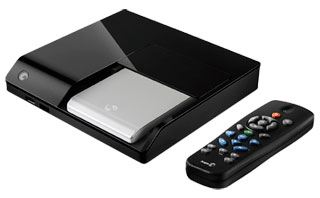
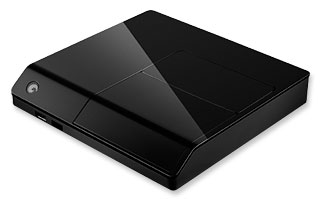
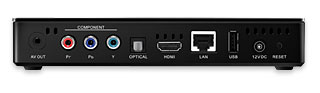
Seagate FreeAgent Home Theatre + (Theatre Plus) HD Media Player (STCEA201-RK)
Music, Movies, Photos | HDMI | Networking
Model: STCEA201-RK
Overview
Play your movies, music and photos from your Thumb drive or external hard disk on your TV in full HD.
* Makes it easy to move your music, movies and photos to your home theater * Lets you experience incredible HD quality playback with riveting surround sound * Simplifies viewing and managing all of your digital media files * Setup in minutes with a single HDMI connection
Perfect for when you need to:
• Enjoy and share your photos, movies and music on your TV in the comfort of your living room. • Access content from storage devices on your network. • Access internet content, on your TV, such as pictures, weather, stocks, and more. • Directly connect a digital camera or external storage device to enjoy media on your TV.
Product Images
*HDD sold separately*
Package Contents
Media Player
Cables
Set-Up Guide
Remote Control
1-Year Limited Warranty
Additional Information
Features
Access the Internet services you use every day: # YouTube # Mediafly # vTuner # Picasa # Flickr # Video Feeds (RSS) # Text Fees (RSS) # Finance Widget # Weather Widget
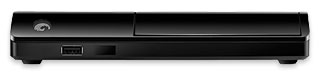
• Easily enjoy your photos, movies and music on your TV. • HDMI connectivity and 1080p HD video playback. • Dolby® Digital and DTS® audio support • Ethernet connection for accessing shared content on your network. • Unique docking system eliminates fumbling with cables and connections. • Front-mounted USB port for digital cameras and additional storage devices. • Includes sync software for PC and Mac® computers. • Intuitive user interface with DVD-style navigation. • Windows® XP, Vista®, Windows® 7, and Mac OS® X compatible.
Add a new dimension to your home theater
You’ve got countless movies, music and photos on your computer, and an incredible home theater system in your living room. What if you could bring them both together and enjoy all of your digital entertainment without ever leaving your couch? Now you can do all that and more, with the Seagate FreeAgent Theater+ HD Media Player.
* Lets you watch, share and store your music, movies and photos from your TV * Delivers stunning 1080p HD image quality with rich Dolby Digital® and DTS® audio (if supported in your digital media files) * Sets up in seconds via a single digital HDMI® cable * Includes an optional 500GB FreeAgent Go hard drive for easy docking, or use you own FreeAgent Go, BlackArmor® PS 110 or other external hard drive